
What the panel can do, screen by screen
Every plan gets the same panel - there is no tier where the file manager is read-only or the console is a summary. This is the whole of it, with the steps for each part.
What do you want to do?
The most common things people need, explained step by step.
- Start my first serverPick a game or app, choose a plan and pay. It's ready in about a minute.
- Upload files or install modsUse the file manager in your browser, or connect with an SFTP app.
- Send commands to my serverUse the live console to run commands and see what's happening.
- Back up or restoreSave a copy of your server and roll back if something breaks.
- Restart or back up automaticallySet restarts, backups or commands to run on a timer.
- Let a friend help manage itGive someone access to your server without sharing your password.
- Add a databaseCreate a MySQL database for plugins or your app.
- Deploy from GitHubPush your code and the server updates itself.
- Put my website onlineUpload a site made of HTML, CSS, JavaScript or PHP.
- Run a Discord or Telegram botKeep your bot online 24/7 without leaving your PC on.
- Use my own domainPoint your own web address at your server, with HTTPS.
- My server won't startThe usual reasons, and how to fix each one.
Guides by game
Every game we host. Pick yours to see its guides.
- Minecraft48 guides401 views
- Counter-Strike 210 guides66 views
- FiveM15 guides67 views
- Palworld7 guides52 views
- Valheim109 guides263 views
- Project Zomboid8 guides122 views
- 7 Days to Die6 guides47 views
- Unturned5 guides45 views
- Terraria5 guides57 views
- Garry's Mod7 guides42 views
- DayZ10 guides79 views
- Factorio4 guides29 views
- Satisfactory4 guides26 views
- Team Fortress 22 guides20 views
- Counter-Strike 1.62 guides37 views
- Arma 33 guides14 views
- Insurgency: Sandstorm2 guides20 views
- SCP: Secret Laboratory2 guides27 views
- The Isle3 guides35 views
- Sons of the Forest4 guides25 views
- The Forest2 guides10 views
- Killing Floor 22 guides7 views
- Don't Starve Together2 guides20 views
- Abiotic Factor2 guides15 views
- RimWorld4 guides35 views
- BeamMP (BeamNG.drive)8 guides49 views
- The Front1 guide5 views
- Euro Truck Simulator 22 guides16 views
- Assetto Corsa3 guides20 views
- Skyrim Together2 guides35 views
For developers
Putting your own code on a server - Node.js, Python, websites, bots and databases.
- OverviewWhere your code goes and how the server starts it.
- Node.jsGet an Express, Next.js or other Node app running.
- PythonGet a Python app, API or script running.
- Static sites and web hostingHost a website made of HTML, CSS, JS or PHP.
- Discord and Telegram botsKeep a Discord or Telegram bot online.
- DatabasesFind your database login and connect your app.
- Custom domainsPoint your own web address at your server.
- TroubleshootingWon't start or won't load? Common fixes.
- Using AI assistantsLet Claude or ChatGPT help set up your server.
Ordering a server
Ordering takes about a minute and happens in three screens: find what you want to run, pick a plan, and pay. Pay by card or PayPal and the server is set up the moment the payment goes through - you can watch it install in its console.
- Takes
- About a minute
- Pay with
- Card, PayPal or bank transfer
- Billed for
- 1, 3, 6, 12 or 24 months
- Prices in
- US dollars or Georgian lari
Step 1
Open the shop and find what you want to run
panel.renode.space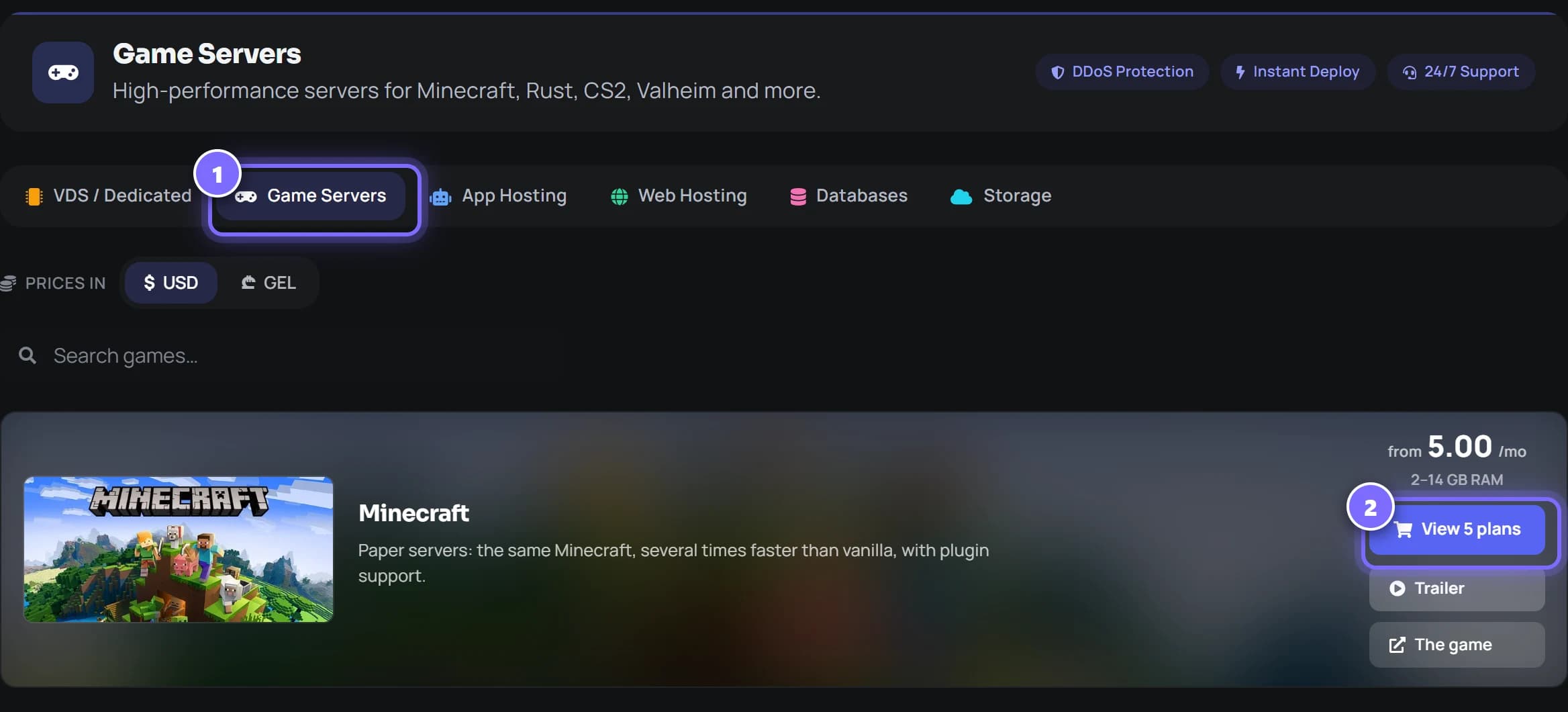
- Sign in to the panel and open the shop. The tabs along the top are the product lines: VDS, Game Servers, App Hosting, Web Hosting and Databases.
- Find your game - there is a search box - and press View plans. The card already shows the lowest price and the range of memory on offer.
Step 2
Compare the plans and pick one
panel.renode.space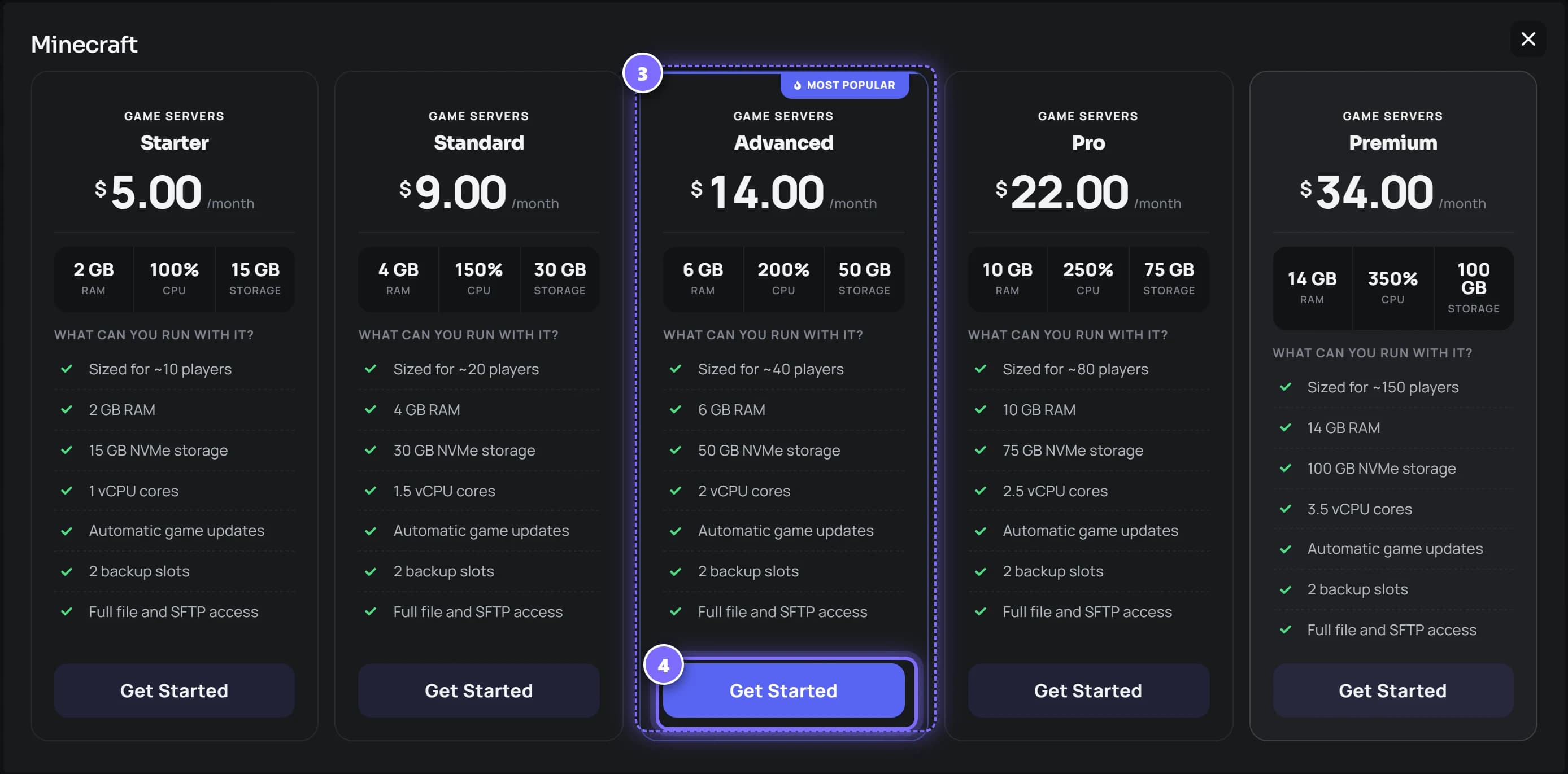
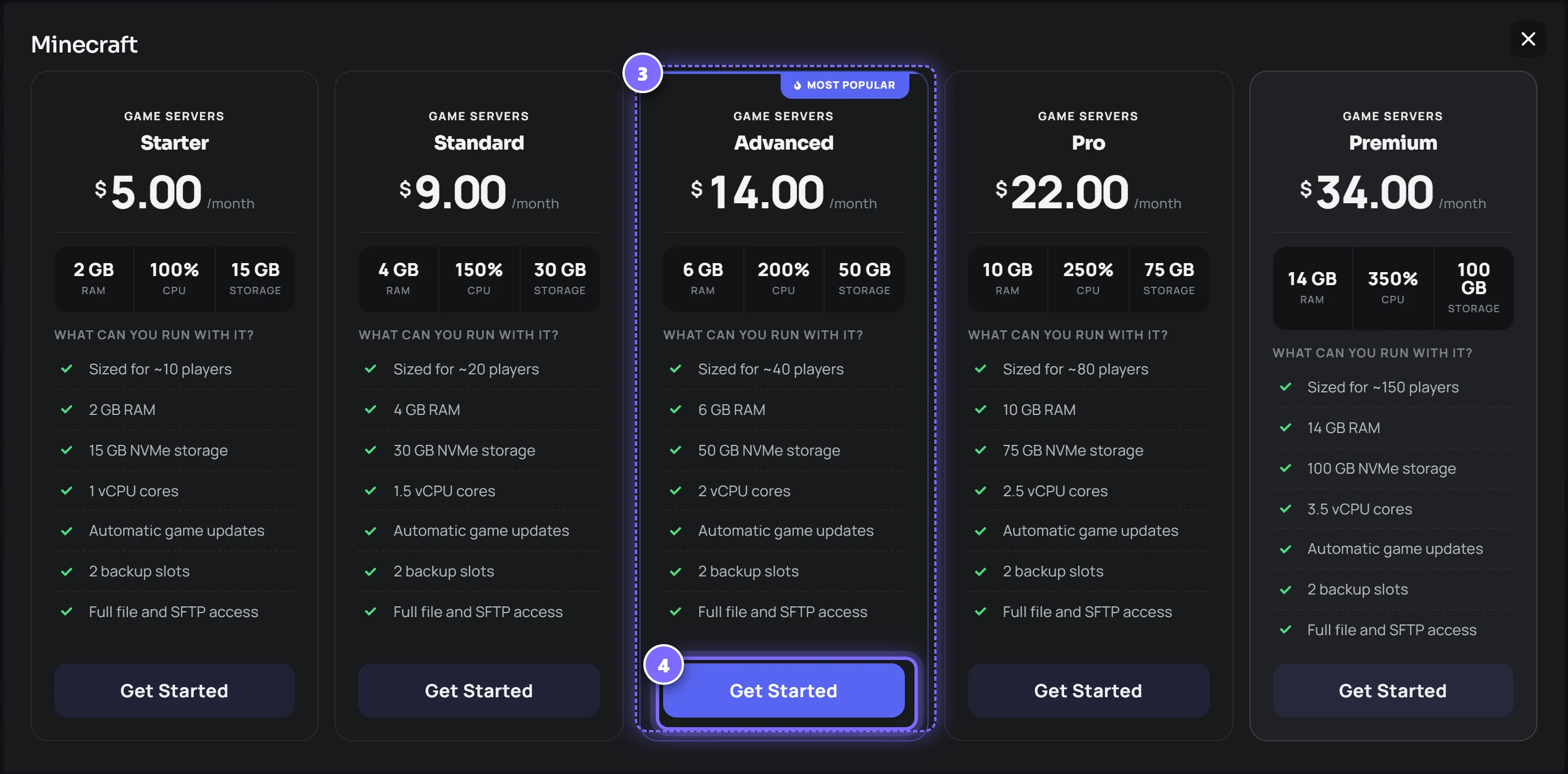
- Every plan lists its memory, CPU and NVMe storage, roughly how many players it suits, and what is included - updates, backup slots, file and SFTP access.
- Press Get Started on the one you want. Not sure? Start smaller: you can move to a bigger plan later without losing your world.
Step 3
Choose how long, then pay
panel.renode.space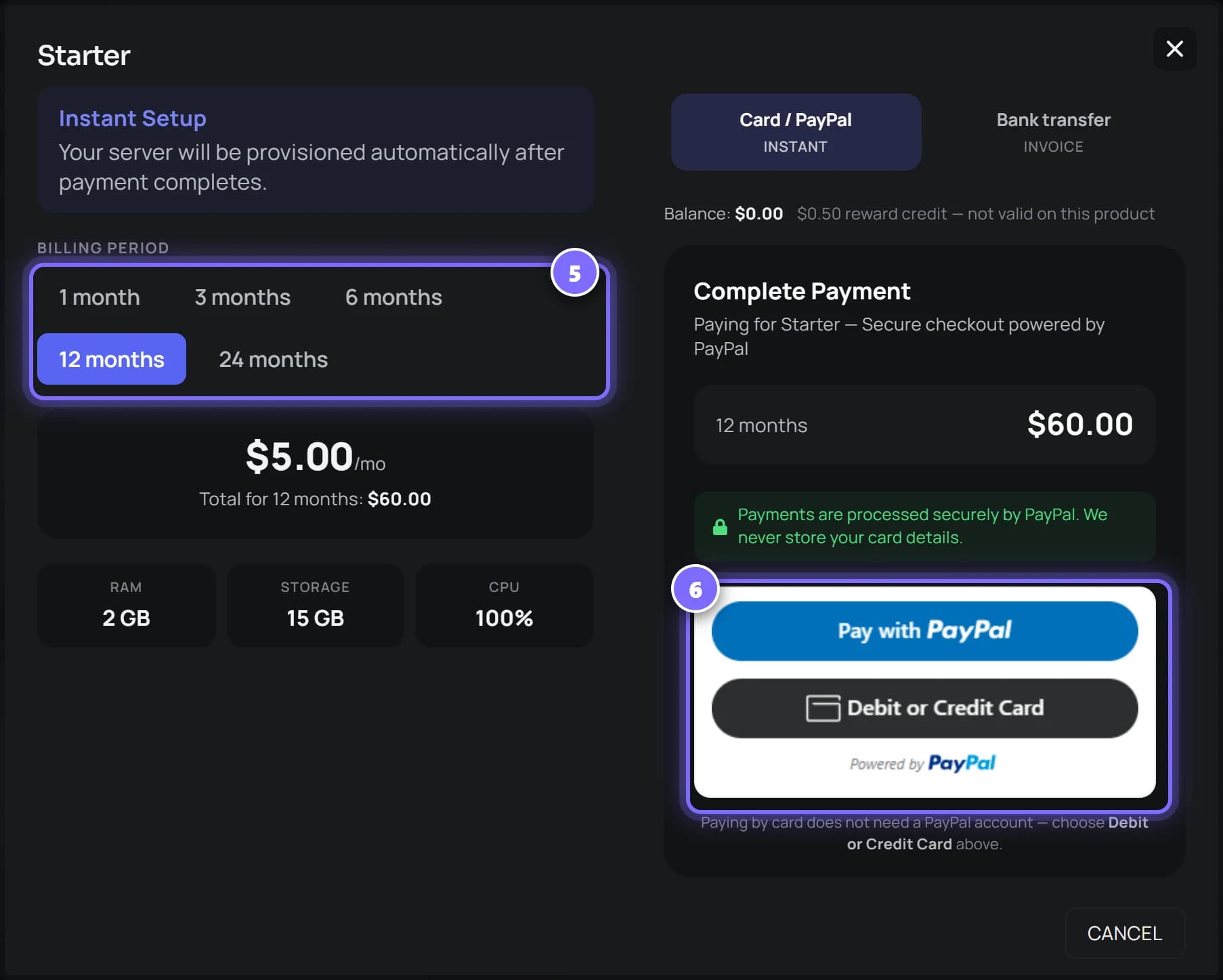
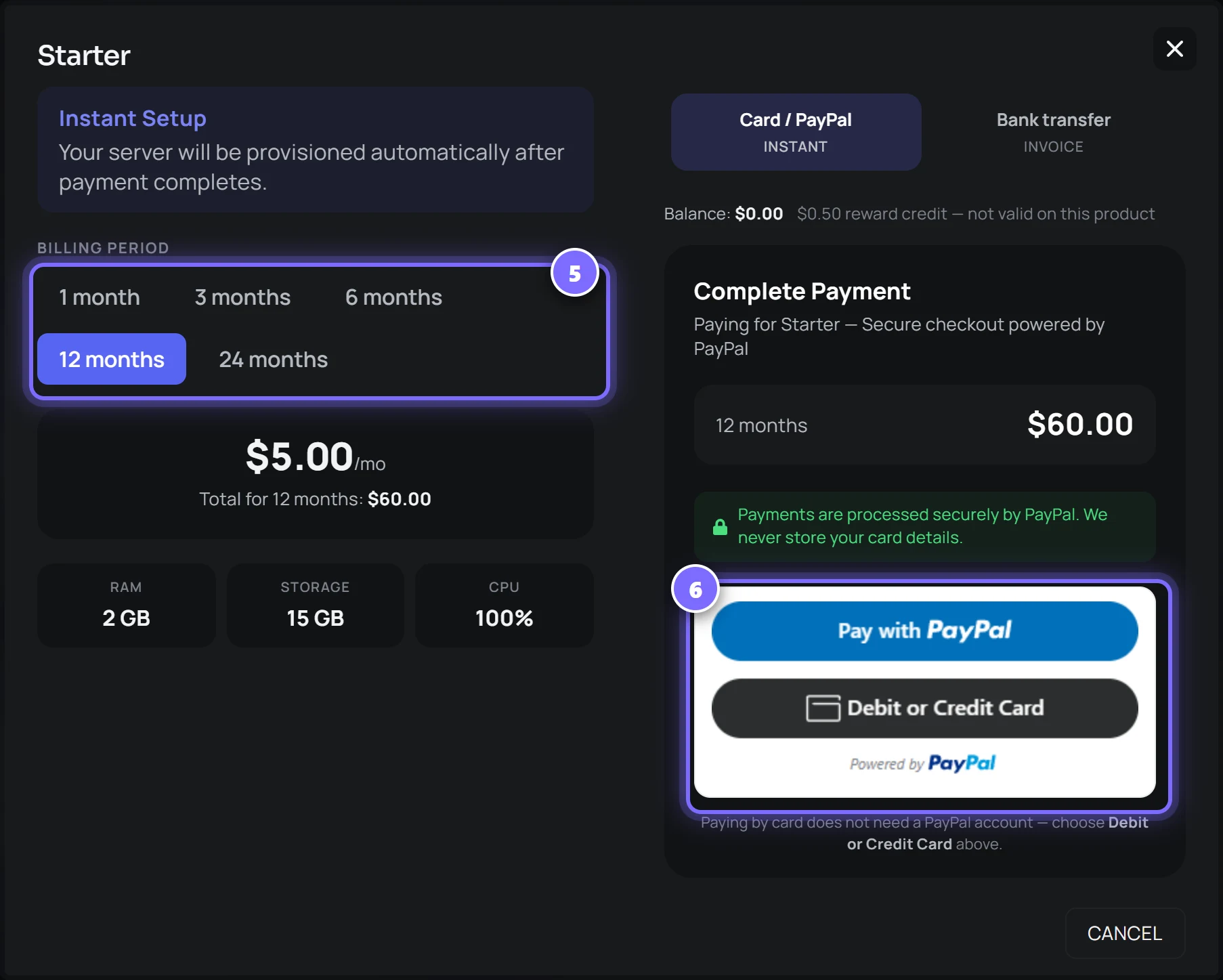
- Pick a billing period - 1, 3, 6, 12 or 24 months. The total for the whole period is shown before you pay, so there are no surprises.
- Pay with PayPal, or press Debit or Credit Card - paying by card does not need a PayPal account. The server is created as soon as the payment completes.
Paying by bank transfer instead
Prefer to pay from your bank? Choose bank transfer at checkout. The server is set up once the payment arrives, usually the next working day.
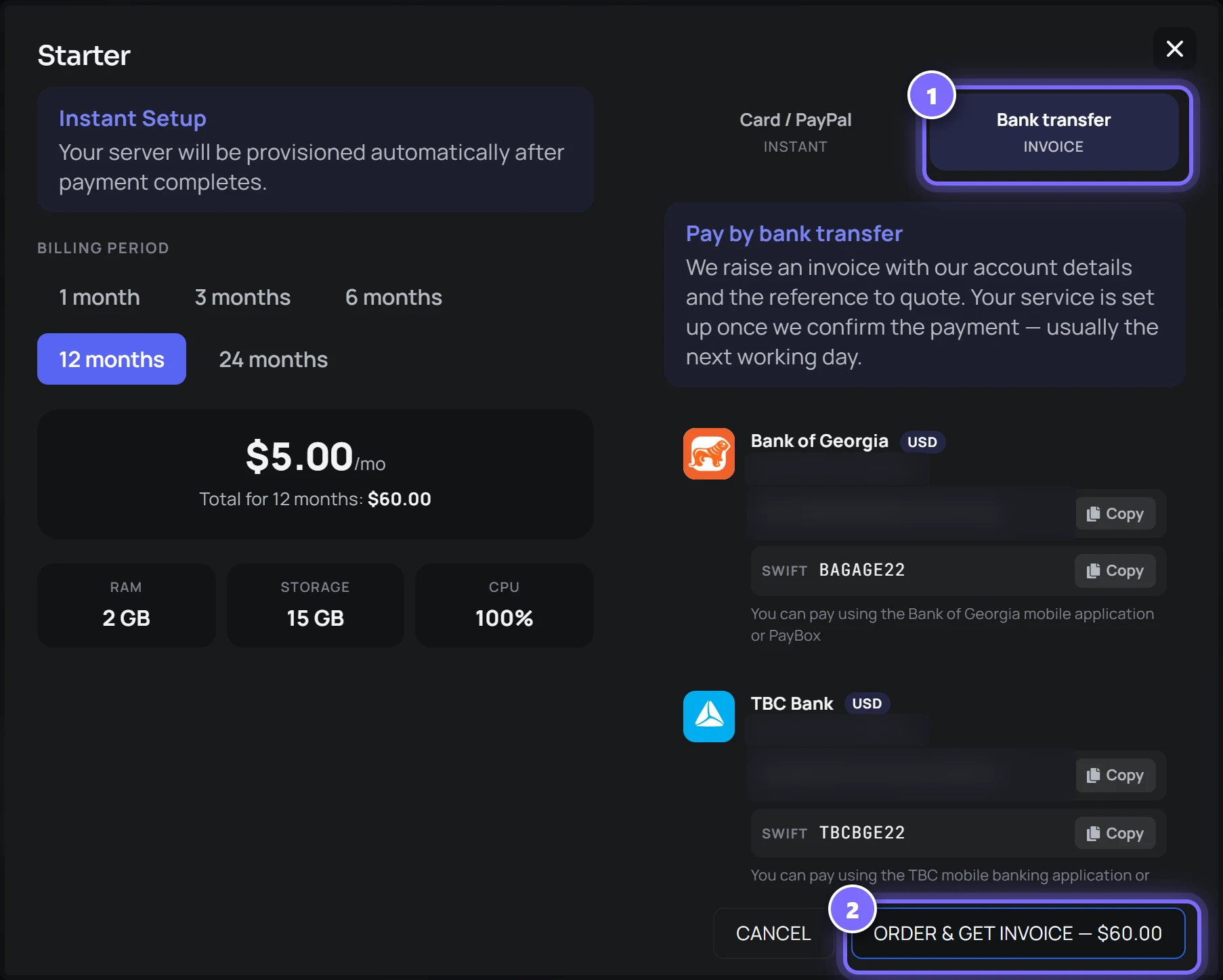
- Switch the payment tab to Bank transfer. The account details for Bank of Georgia and TBC Bank appear, each with a Copy button.
- Press Order & get invoice, then pay that invoice from your banking app, quoting the reference on it.
After you pay
- The server appears under My Servers and installs itself. Open it to watch the install in the console.
- Your orders, invoices and subscriptions are under Finances in the side menu.
- Stuck at any step? Open Support in the side menu and raise a ticket.
Screenshots of the RE:NODE panel. Bank account details are hidden here; you will see them in full at checkout.
The console
Live output, a command line, power controls and the resource graphs. It is the server's own output rather than a filtered summary - if the game prints it, you see it.
 my-server5.83.153.81:25565RUNNING
- Start, stop, restart and kill, with the current state always visible.
- Command history with the arrow keys, and tab completion for common commands.
- Web-server noise - the internet knocking on doors that are not there - is folded behind a count you can switch off. A real error always prints.
- Graphs for memory, CPU and disk against your limits, so whether it is the plan or the mod is answerable.
Files and SFTP
A complete file manager with an editor in the browser, plus SFTP credentials for the tools you already use. Upload a modpack, fix a config, pull a world down to your machine.
my-server5.83.153.81:25565RUNNING- Drag files in, or upload a folder. Archives can be unpacked in place.
- Edit any text file with syntax highlighting and save without downloading it.
- PDFs and images preview in the panel rather than downloading first.
- SFTP on the same credentials - use FileZilla, WinSCP or your editor's remote mode.
Backups
Take one before you try something. Restore it when the something goes wrong. Lock the ones that matter so they are not rotated away.
my-server5.83.153.81:25565RUNNING- Slots on every plan - two on the entry tiers, more further up.
- Take one on demand, or on a schedule you set.
- Download any backup to your own machine.
Databases
Create a database from the panel and it comes with a host, a username and a password generated for it. Nothing is shared with anybody else's server.
Subusers, roles and teams
Give somebody the console without giving them your files, or the files without your billing. Three separate ideas, kept apart deliberately.
- A role holds permissions - what may be done.
- A team holds people.
- A grant joins a team to a server with a role, so adding a moderator to the team gives them the same access everywhere at once.
- Invite by link, by a join code, or by email address - and require approval on the codes if you would rather vet people.
- Access can be time-boxed, and expiry stops working immediately rather than overnight.
Scheduled tasks
Restart nightly, back up before the restart, announce it to players first. Tasks run in order with delays between them, so a schedule can be a small routine rather than one action.
- Send a console command - a warning to players, a save, a world flush.
- Take a backup.
- Power actions: start, stop, restart.
Git deploys
For application servers: connect a GitHub repository and branch, and the container pulls it on boot. Switch on deploy-on-push and it restarts itself when you push - and a stopped server is started, so the push goes live either way.
Every deploy is recorded: opened when the push arrives, closed once the container is actually seen running again. That is the difference between a deploy that shipped and a deploy that fell over.
Games that need a key from you
A few games want a credential their publisher issues to a person - a Steam game-server token, a Steam account that owns the server files, a Klei cluster token, a Cfx.re licence. We cannot create one and we never share one between customers.